

Bluetooth
The official MeshCore app on an Android phone, over Bluetooth: the device's nodes, channels and messages on the phone, and sending through it.
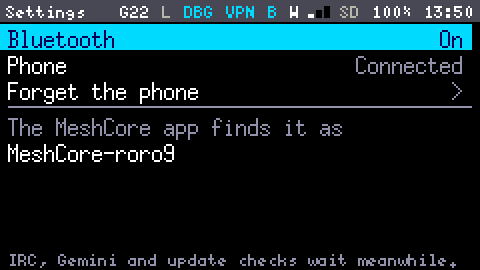
With Bluetooth on, the official MeshCore app on an Android phone drives the device: it shows the device's nodes as its contacts, its channels and messages, and sends through it. The device stays its own node, with its own key and its own screens: a message sent from the phone shows in the Mesh App, and the other way round. One phone at a time.
Bluetooth is off by default. Checked with MeshCore app v1.51.1.
Switching it on
- Settings → Network → Bluetooth, and switch it on.
- Say yes to Restart with Bluetooth?: Bluetooth starts with the device. Its memory is given back to the rest of the firmware at every start while it is off, so switching it on takes a restart; switching it off doesn't.
B appears in the Status Bar, dim while the device waits for the phone, bright while the app is connected.
Pairing the phone
- In the MeshCore app, connect by Bluetooth and pick MeshCore- followed by the device's Long name (Settings → This device).
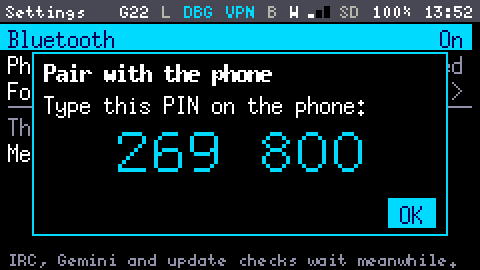
- The device shows Pair with the phone and a 6-digit PIN, in large figures. Type it on the phone, within 30 seconds.
- The app reads the device: its name, its contacts and its channels.
The PIN is new each time; there is no fixed one. Once paired, the phone reconnects by itself, after a restart of either side too, with no PIN. One phone is paired at a time: pairing another forgets the first.
The app's Configure your device wizard fails at some steps (the device keeps its name, position and radio to its own Settings, see below): skip it.
Forget the phone on the same Settings page makes it ask for a PIN again. Forget the device on the phone too (Android: Settings → Connected devices → the gear beside it → Forget), or the phone will try the old pairing and fail.
What the app can do
| In the app | On the device |
|---|---|
| Contacts | The node list: the 24 nodes most recently heard, as the Mesh App shows them. Deleting a contact drops the node until its next advert |
| Favourite | Kept: a favourite stays on the list when it's full, and after a restart. It's the only change to a contact the device takes |
| Channels | The device's channel list, Public first: the app can add, change and leave channels |
| Messages | Channel and private messages, with delivered on private ones, as from the Mesh App |
| Rooms | Logs in to a room server and posts, as the Mesh App does; a password that works is kept on the device |
| Advert | Sends the device's advert |
| Time | The phone's clock sets the device's when neither Wi-Fi nor a GNSS fix has, so the device can send with neither |
What it can't do: change the device's name, position or radio settings (Settings owns them), or reach its key, which leaves the device by USB only. The device's rules hold for the app too: with Mesh on Listening, its messages are refused (the app says Bad State), and the 10% airtime limit counts what it sends.
Messages wait for the phone: while it is away, the device keeps the last 16 messages it receives for it, and the app gets them when it connects again. A private message sent to the device while the phone is away is still marked delivered at once: the device received it.
Bluetooth and Wi-Fi together
Wi-Fi stays on beside Bluetooth, with the VPN, SSH and the mesh. But Bluetooth takes about 50 KB of memory, so what needs a secure (TLS) connection, IRC, Gemini and update checks, waits while it is on, and says so ("not enough memory"). Switch Bluetooth off to use them.
Updates need Bluetooth off too, whether checked and downloaded from the server or pushed over Wi-Fi: switch it off, update, and switch it on again after the restart.
In the Shell
| Command | What it does |
|---|---|
ble status | The state, the connected and the paired phone, and what went through |
ble on | Bluetooth on, and a restart |
ble off | Bluetooth off, at once |
ble forget | Forget the paired phone |
The keys, as the device lists them
What Fn + h shows on this screen. This table is generated from the firmware's own lists, so it is always the current one.
Settings, Bluetooth
| ; . | up, down |
| Enter | switch, or forget the phone |
| , / | switch Bluetooth on or off |