

SSH
A terminal on another machine: log in to a server with a password or with the device's own key, and run a shell, vim or top on the Cardputer's screen.
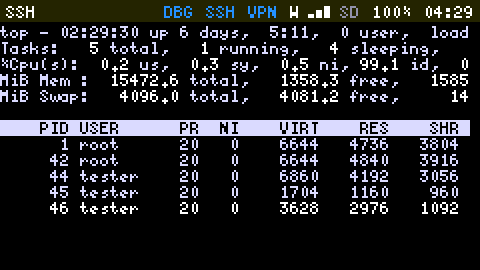
The SSH App opens a terminal on another machine: a server, a Raspberry Pi, a router. What you type goes there, and what its programs print is drawn here: a shell, less, top, nano, vim.
It is a client and nothing more: one session at a time, to a shell. No file transfer, no port forwarding, no jump hosts.
Connecting
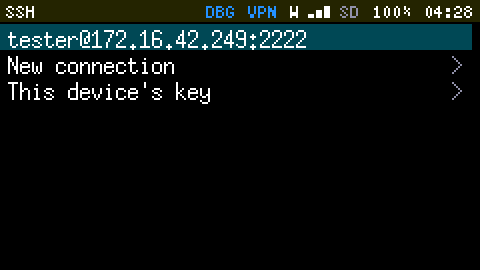
The App opens on the hosts it has connected to before, the last one first, then New connection and This device's key.
- Choose New connection (or press n) and type
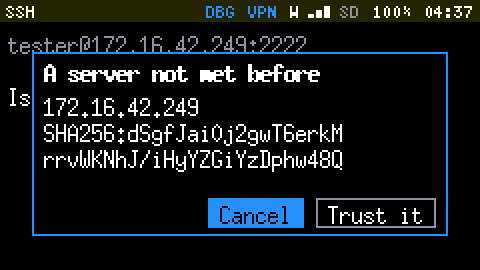
user@host, oruser@host:portwhen the port isn't 22. The host is a name or an address. - The first time, it shows the server's fingerprint and asks whether that is the right server. Compare it with what the server's owner gives you (
ssh-keygen -lf /etc/ssh/ssh_host_ed25519_key.pubon the server prints it), and choose Trust it. It is remembered, and not asked again. - Type the password when it asks. It is used for this login and kept nowhere: not in the device, not on the card.
A host you logged in to is kept in the list: Enter connects to it again, d forgets it, and its fingerprint with it. Up to eight are kept.
From the Shell, ssh user@host does the same and opens this App.
If the server has changed
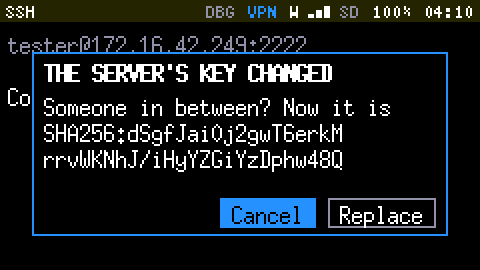
A server that shows a different key than the one remembered gets a warning instead of a question: THE SERVER'S KEY CHANGED. Either the server was reinstalled, or something between you and it is answering in its place. The safe answer, Cancel, is the one selected. Choose Replace only when you know why the key changed.
Without a password: this device's key
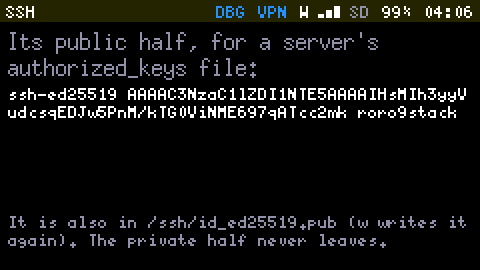
This device's key makes a key pair for the device (Ed25519). The private half stays inside the device and is never shown. The public half is one line of text:
- it is shown on that page,
- written to the card as
/ssh/id_ed25519.pub, - and printed by
ssh statusin the Shell.
Add that line to ~/.ssh/authorized_keys on a server, and the device logs in there with no password. See Log in to a server without a password.
Making a new key replaces the old one: servers that knew the old one ask for a password again.
The key has no passphrase, so whoever holds the device can log in wherever its key is accepted. Keys made elsewhere can't be imported.
In the terminal
Every key goes to the other machine, with these differences:
| Key | Does |
|---|---|
| ` | Esc (the key is printed "esc") |
| Alt + ` | types a backtick |
| Fn + ; . , / | the arrows |
| Fn + Shift + ; . | Page Up, Page Down |
| Ctrl + a letter | Ctrl+C, Ctrl+D, Ctrl+Z and the rest |
| Alt + a key | that key with Alt (Esc first) |
| Alt + ; . | scroll back and forward through the last 100 lines |
| Ctrl + + - | larger and smaller text |
| Ctrl + Alt + q | disconnect |
| Fn + ` | back to the Launcher, leaving the session running |
Leaving doesn't disconnect. Go to the Launcher or to another App and the session goes on; SSH shows in the Status Bar for as long as it does. Open the SSH App again and you are back in it. exit on the other machine, or Ctrl + Alt + q here, ends it.
The size of the text
Five sizes, changed with Ctrl + + and Ctrl + -; the other machine is told the new size at once, and the choice is kept.
| Text | Columns × rows |
|---|---|
| tiny | 60 × 20 |
| small (to start with) | 48 × 15 |
| medium | 40 × 12 |
| normal | 40 × 9 |
| large | 26 × 8 |
A terminal is usually 80 columns wide, and this screen isn't: long lines wrap, and programs that want 80 columns look cramped. top, vim and less adapt.
What it shows, and what it doesn't
- Sixteen colours, bold as a brighter colour, reverse video.
- Western European letters (é, ñ, ü). Other characters show as
?, and box-drawing lines as+,-and|. - No mouse.
Memory
A session takes about 50 KB of the device's 100 KB while it is open, and gives it back when it ends. That is too much to share with a secure connection:
- It doesn't start with less than 75 KB free. With IRC connected, or a Gemini page open, it says "Not enough memory: close IRC or a Gemini page".
- While a session is open, IRC doesn't connect: it says so in its buffer and tries again later.
See When a connection says "not enough memory".
From the Shell
ssh user@host        connect, in the SSH App
ssh user@host:2222   on another port
ssh status           the session, and this device's public key
ssh stop             end the session
Keys
What Fn + h shows on these screens. These tables are generated from the firmware's own lists, so they are always the current ones.
SSH, the hosts
| Enter | connect, open |
| ; . | up, down |
| n | a new connection |
| d | forget this host |
SSH, the terminal
| ` | Esc |
| Alt ` | a backtick |
| Fn ; . , / | the arrows |
| Fn Shift ; . | Page Up, Page Down |
| Ctrl a..z | Ctrl+C and the rest |
| Alt ; . | scroll back, forward |
| Ctrl + - | larger, smaller text |
| Ctrl Alt q | disconnect |
| Fn ` | leave it running |
SSH, this device's key
| Enter | make a key, or a new one |
| w | write the public half to the card |
| ` | back |